Configuration of SQL Server For CenterScape
Overview
CenterScape requires an empty database with database owner privileges. It only requires these privileges on the database itself and not as a role on the entire database server. CenterScape supports SQL Authentication when running on Linux or Windows and Windows Authentication when running on a supports Windows Operating System.
Note: If an encrypted database connection is needed and a non-public encryption certificate is used, the keystore must be updated with an enterprise trust certificate that will authenticate the certificate of the database.
SQL Server Configuration Procedure
If using SQL Authentication, create a SQL User Account for CenterScape to use. If possible, disable password expiration as the changing of the SQL password will require system downtime and an application restart of CenterScape.
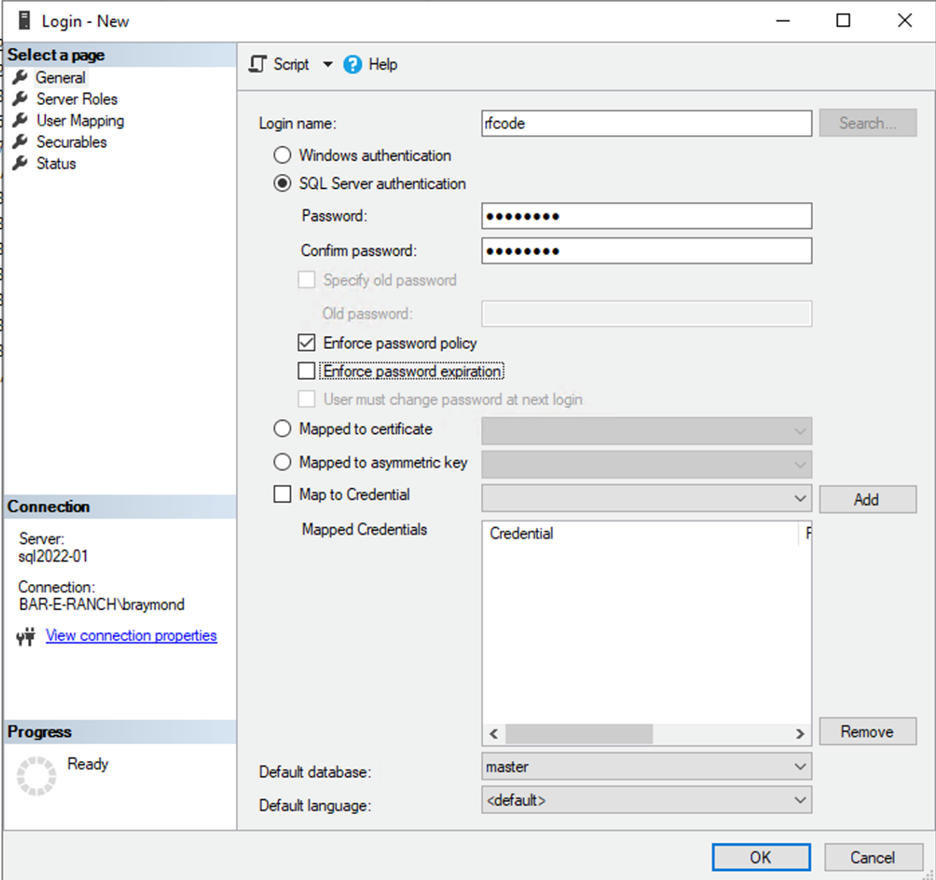
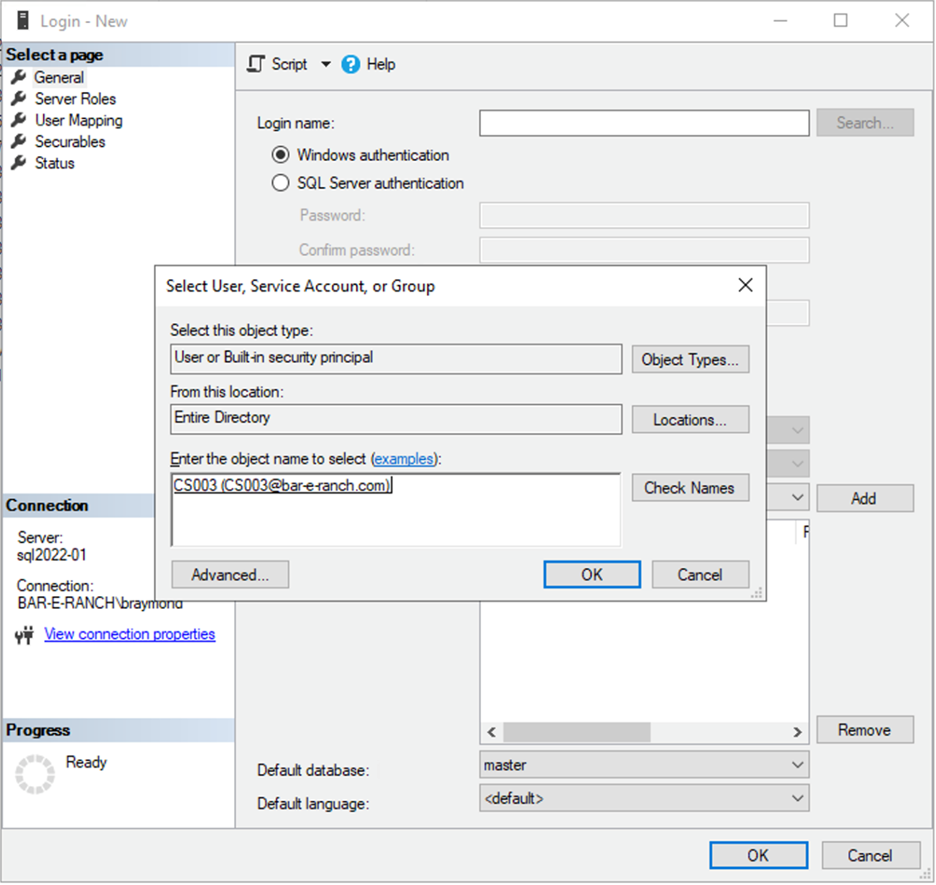
If using Windows Authentication create a windows authentication login and use a service account or user account on active directory for authentication.
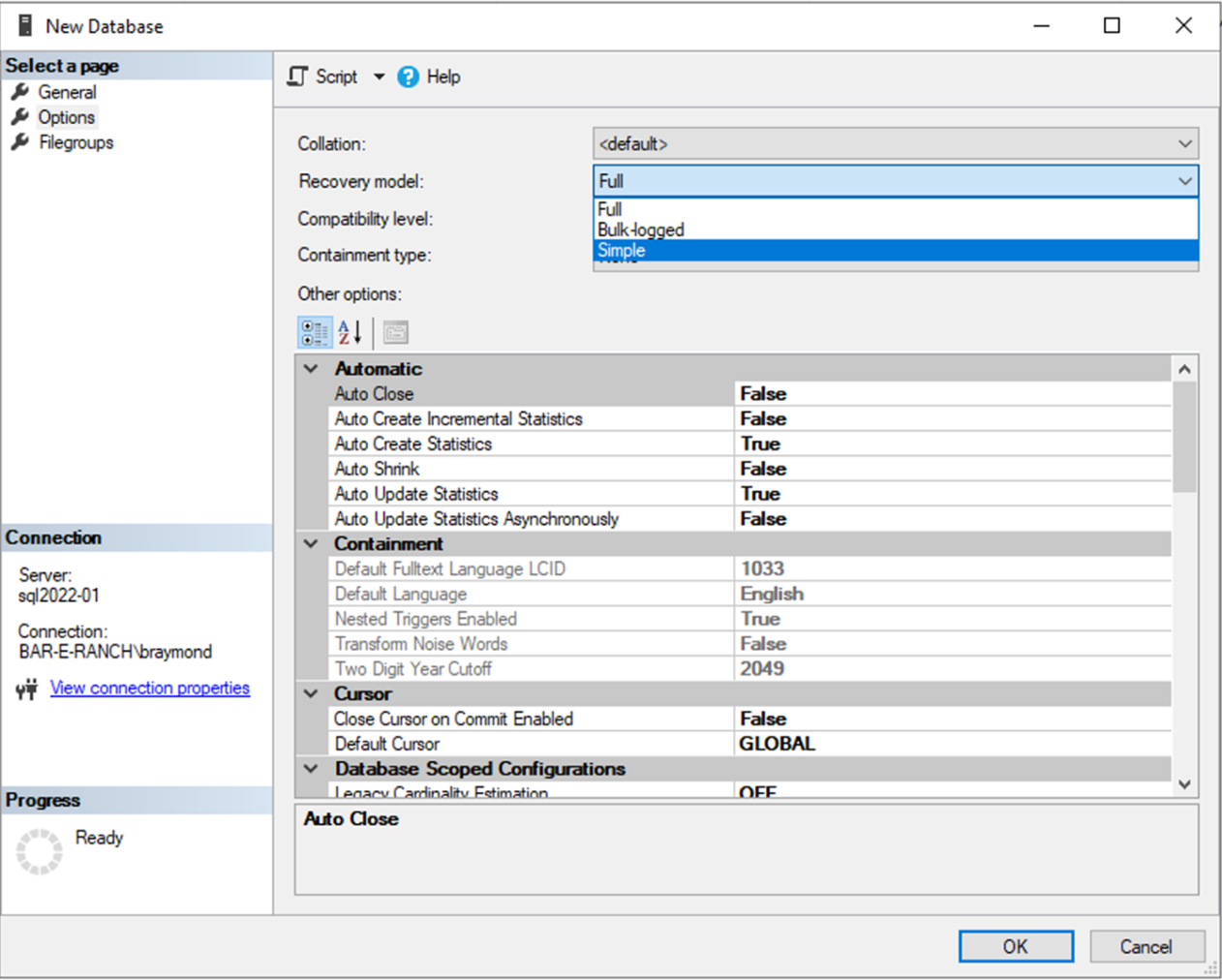
Next, create an empty database.
If point in time recovery is not needed or transaction logs are not managed choose recovery mode simple. Otherwise, use which every recovery mode desired.
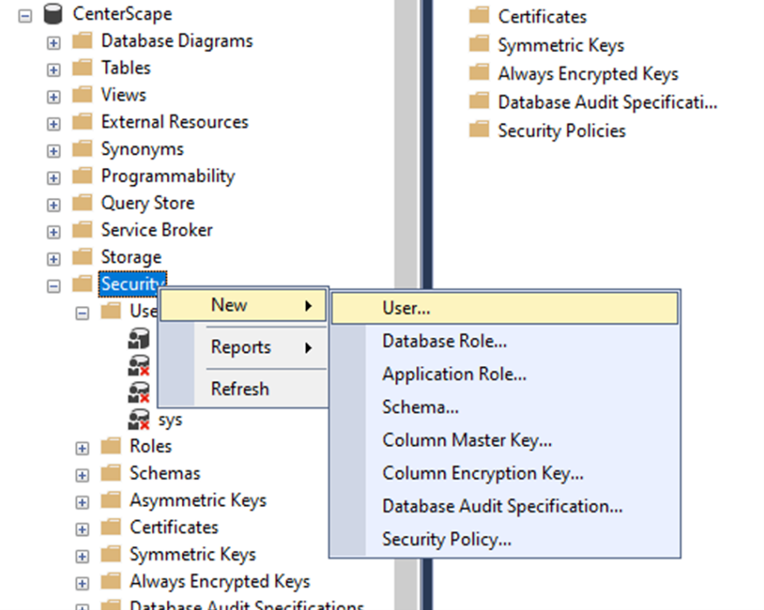
Next create a user under the security folder in the new database.
Select login name and chose the SQL Login created or the Windows Authentication User for the Login field.
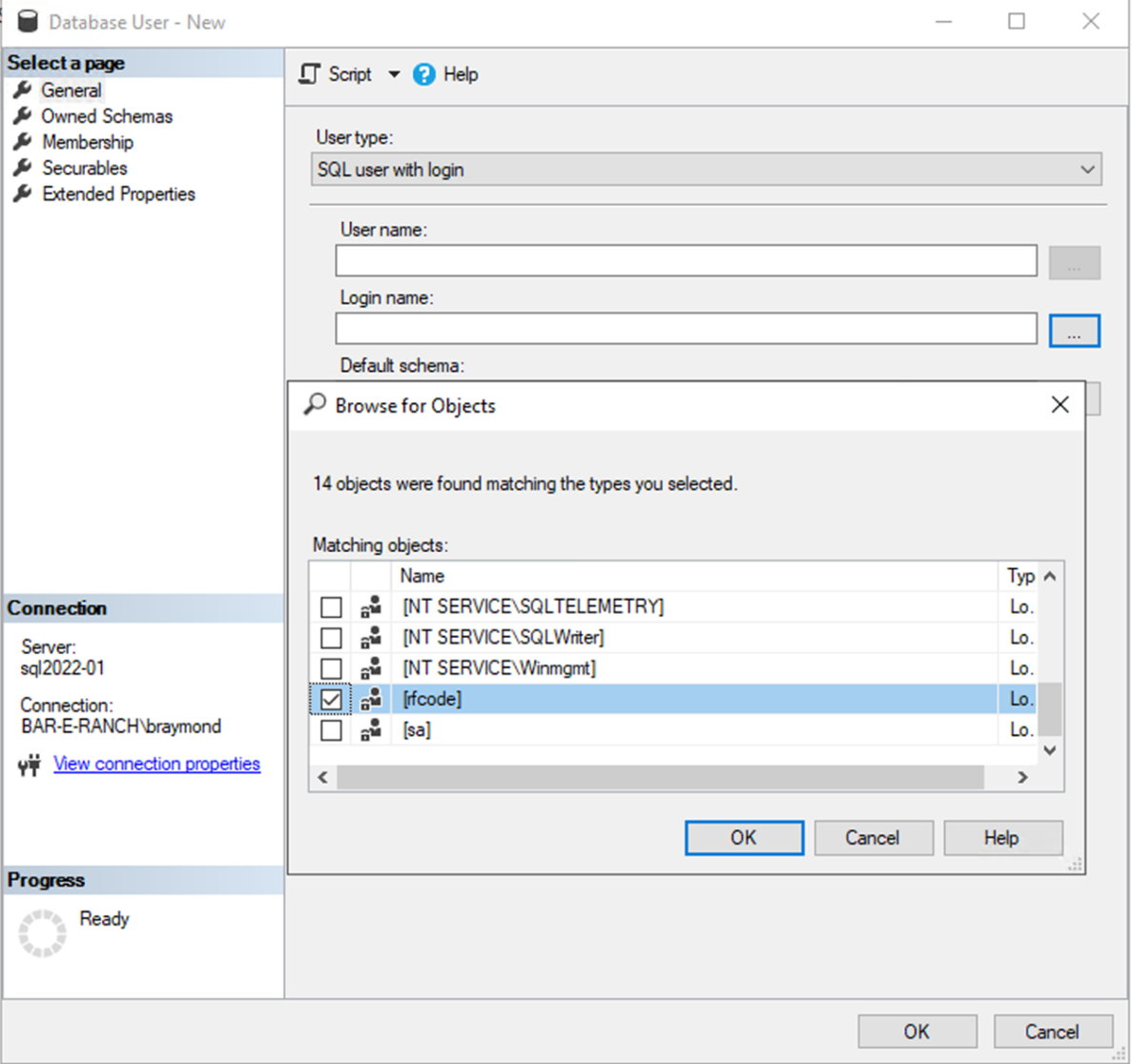
Choose Default schema dbo.
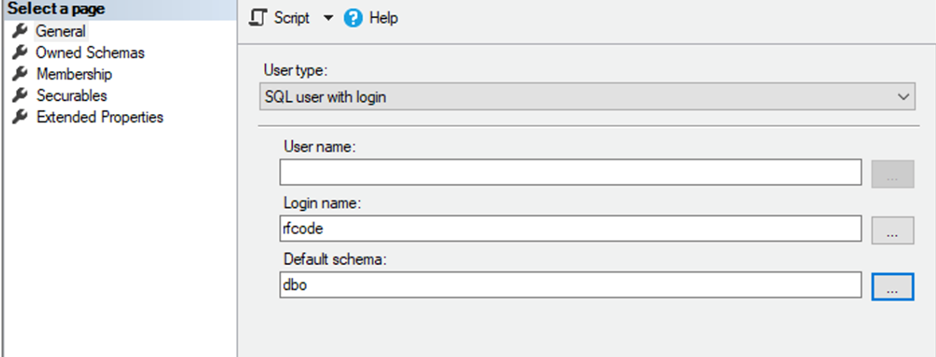
Under Membership Choose db_owner and choose a name for the user.
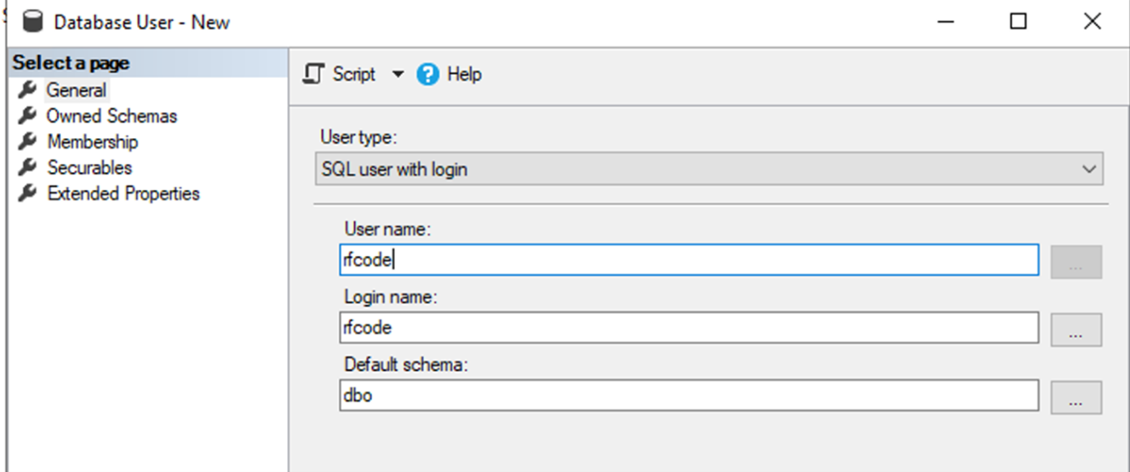
Save the changes and the database is ready for connectivity to CenterScape